ColorBox User Guide
User Interface Overview
ColorBox for macOS organizes its tools by module. This guide starts with Lighting Analysis, where you can capture light measurements, review results, and organize readings for a report. If you already have measurement files, you can open or import them and start reviewing results without connecting an instrument.
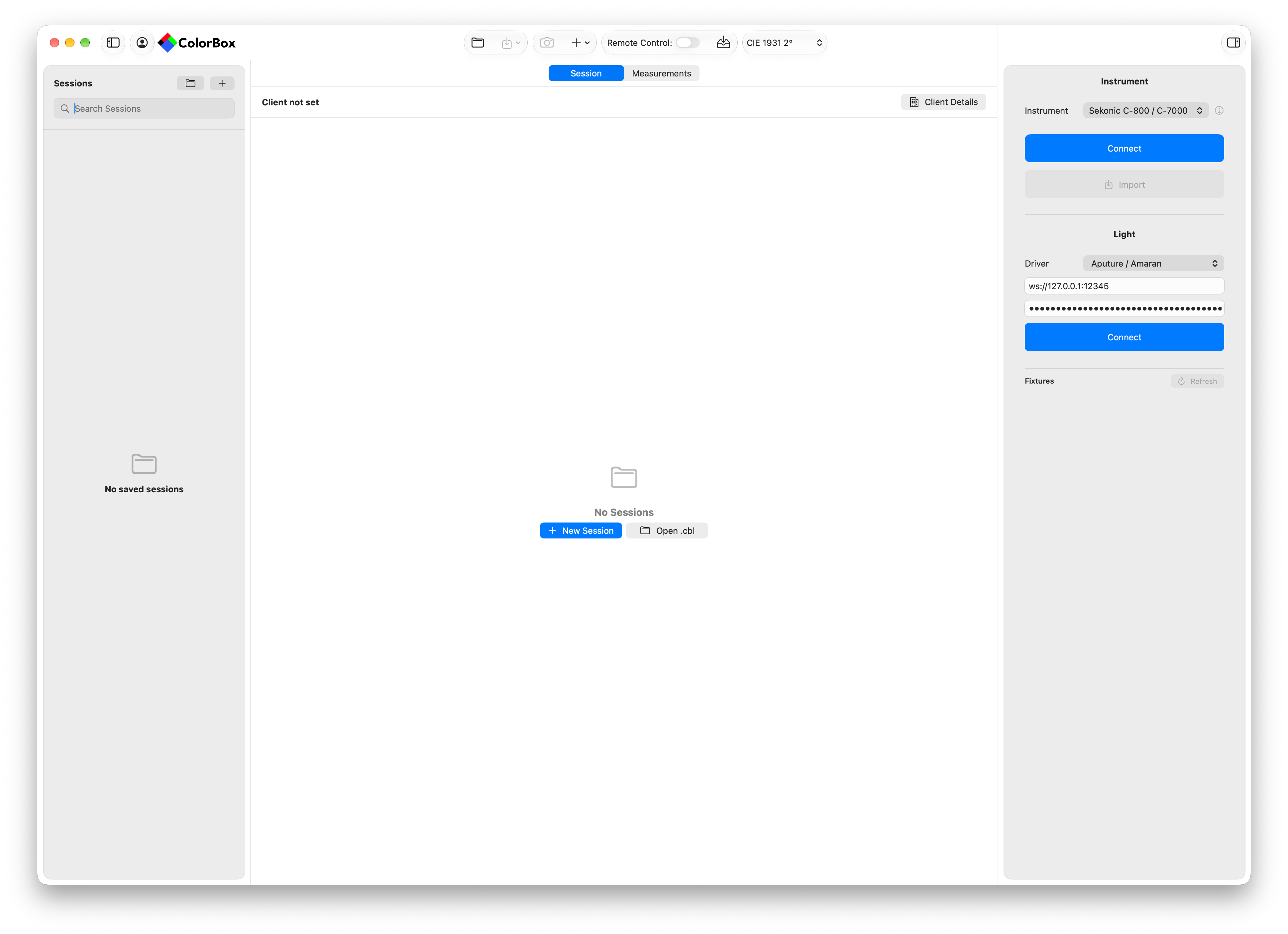
| Area | What you do there |
|---|---|
| ColorBox sidebar | Switch between modules such as Lighting Analysis, Calibration, and Data View. Available modules depend on your license. If your access is limited to Lighting Analysis, ColorBox opens it directly and hides the module sidebar. |
| Main workspace | Work in the selected module. In Lighting Analysis, use Session to organize your work and Measurements to inspect readings. Additional tabs can appear while you work on an activity such as a time-based capture or sequence. |
| Window toolbar | Use the controls for the current module. In Lighting Analysis, the toolbar includes Open, a Save menu, New, and Capture. The Profile button opens your shared profile. |
| Inspector | Click Inspector in the upper-right toolbar to show or hide the right-hand panel. In Lighting Analysis, use it to select, connect, and configure a measurement instrument. The Inspector button appears in modules that provide an inspector. |
The ColorBox module sidebar and the list inside Measurements serve different purposes. Use the module sidebar to enter Lighting Analysis, then use the measurement list to choose the reading shown in the main panel.
Profile
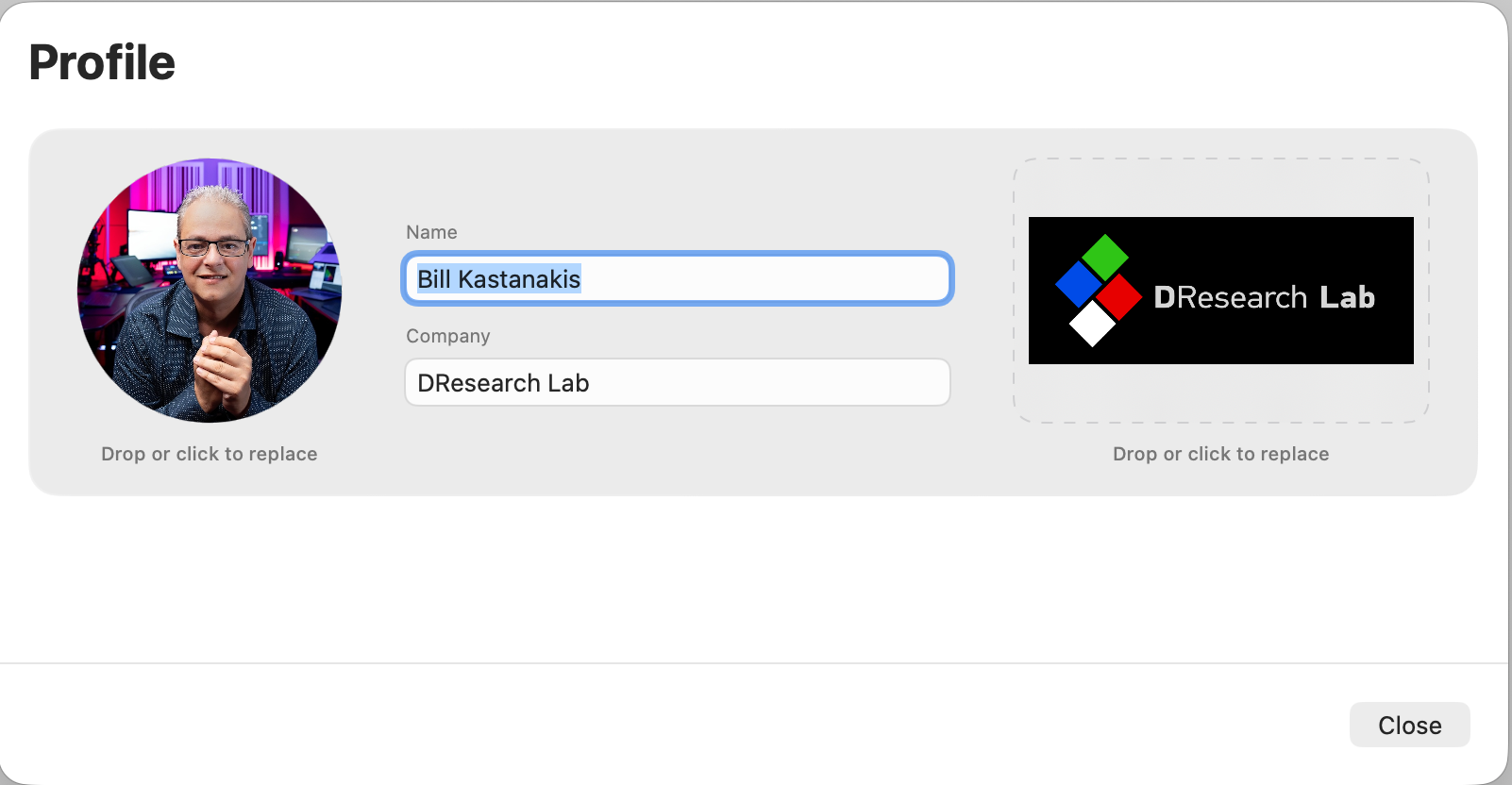
Set up your Profile so report readers can see who took the measurements. In Lighting Analysis reports that include Measured by, ColorBox uses your profile name and company and includes your profile image and logo when provided. Your profile is shared across ColorBox workspaces. Enter the customer’s information in Client Details for each project.
Click Profile (the person icon in the window toolbar) to enter your name and company. Click either image area to choose a file, or drag a file onto Profile Image or Company Logo.