
ColorBox User Guide
Connecting an Instrument
Connect an instrument when you want ColorBox to take a live reading. The model you select determines the connection options and which measurements you can capture. For example, choose an instrument that supports spectral capture if you want to inspect the light’s spectrum and calculate color metrics from it. To work with readings you already have, open or import them.
Connect from the Inspector
- Prepare the connection Power on the instrument and prepare its connection. For a USB instrument, attach its data cable to the Mac. For a Bluetooth or Wi-Fi instrument, prepare the wireless connection for that model.
- Select your instrument In Lighting Analysis, click Inspector in the upper-right toolbar. Open the Instrument menu and select your model. The choices depend on the current module and your available features.
- Connect Set any connection options shown for your instrument, then click Connect. When the button changes to Disconnect, the instrument is connected.
- Check settings and calibration Check any measurement options shown for your model. If ColorBox requests calibration, follow the prompt before capturing. Click the information button next to the instrument menu to see the device details your instrument provides.
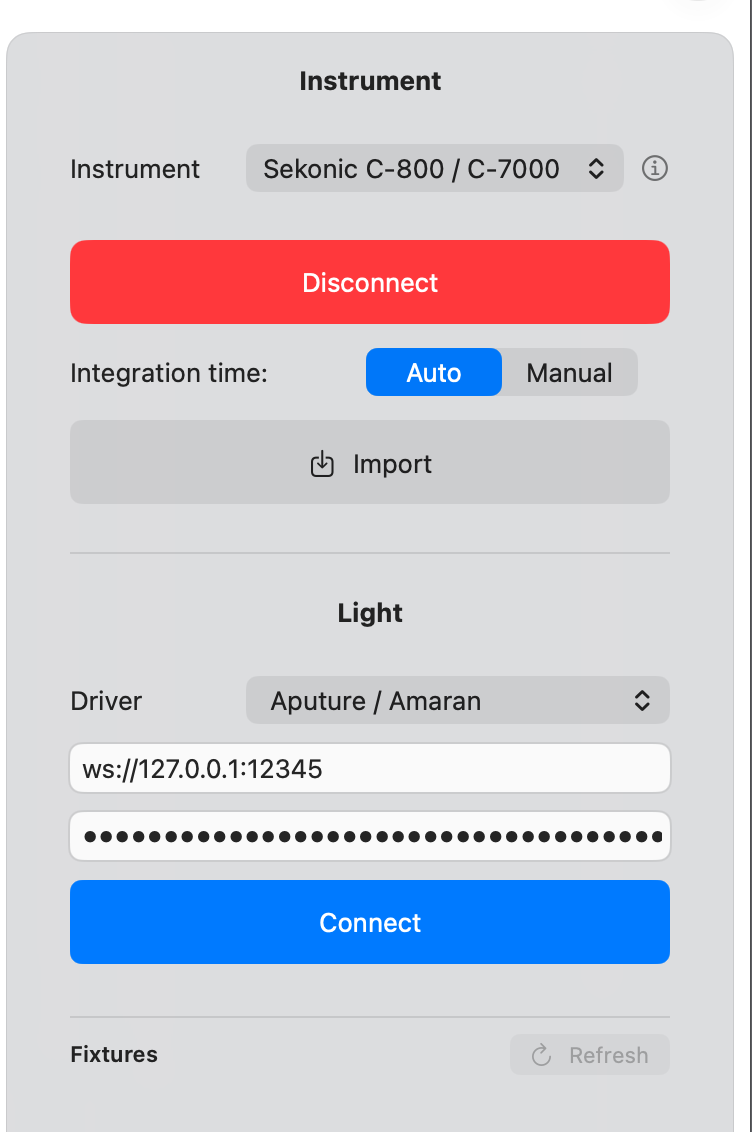
For a JETI instrument with a USB cable, choose the USB connection and leave USB port set to Automatic (JETI USB) unless you need to choose a specific port. For a UPRtek CV600, join the instrument's UPRtek_Wing Wi-Fi network on the Mac before clicking Connect.
If you cannot connect or capture
- If your instrument is missing from the menu, check that you are in the module where you intend to use it. Available models vary by measurement workflow.
- If ColorBox reports a connection error, check the instrument's power and cable or wireless connection, then retry from the Inspector.
- If Capture is unavailable after connecting, check that the instrument supports the selected acquisition mode and that any calibration prompt or active acquisition has finished.
- To end the connection, click Disconnect in the Inspector.