
ColorBox User Guide
License Activation
Activate ColorBox on each Mac where you want to use your licensed features. Your license determines which modules and editions you can access and how many Macs can be active at the same time.
Receive your license email
DResearch Lab sends you a license email with a .colorbox-license attachment and details of your included access. The email can also include your ColorBox download link and the dates that apply to your plan. Save the attachment somewhere you can find it, such as Downloads. Keep it for setting up ColorBox again or moving to another Mac.
Use ColorBox on two Macs
You can activate ColorBox on two Macs for the same licensed user, such as a desktop Mac and a MacBook. Use ColorBox on only one Mac at a time. Both Macs can stay registered, so you can close ColorBox on one and open it on the other without deactivating either.
The Devices row counts registered Macs. If both slots are occupied and you want to register a replacement Mac, deactivate one of the existing Macs first.
Register ColorBox for the first time
Activation requires an internet connection. Connect your Mac before importing the license.
- Install and open ColorBox Download the app from the link in your license email, open the downloaded file, and drag ColorBox to Applications. Launch it from there.
- Open the License window If it does not appear at launch, choose ColorBox → License… in the macOS menu bar.
- Import your license file Click Import License… and select the
.colorbox-licenseattachment you saved. ColorBox attempts activation when it imports the file. - Check the result When the License window shows Active, click Done. If the file was imported while you were offline, connect to the internet and click Activate.
View your license information
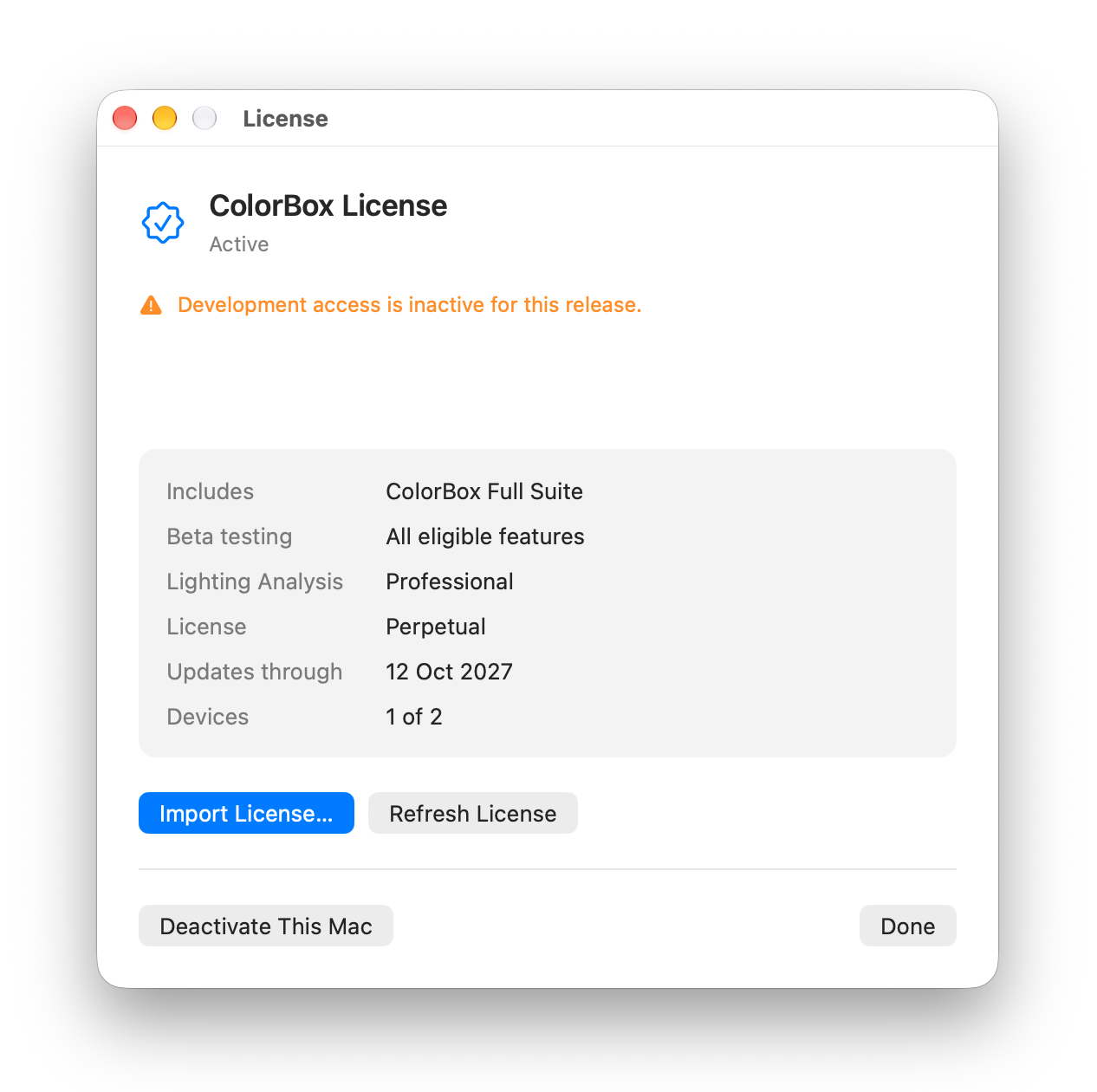
Choose ColorBox → License… at any time to see your activation status and what is included. The fields shown depend on your license.
| Field | What it shows |
|---|---|
| Includes | The ColorBox suite or modules you can use. |
| Lighting Analysis | Your Lighting Analysis edition, when included. |
| Beta testing | Whether your license includes access to eligible beta features. |
| License, Updates through, and Expires | The license type and the relevant coverage dates. |
| Devices | The number of active Macs and the total slots allowed. |
Deregister a Mac
Use Deactivate This Mac before moving ColorBox to another Mac or retiring your current one. Deactivation frees a device slot on your license.
- Open the License window on the old Mac With the Mac connected to the internet, choose ColorBox → License….
- Confirm deactivation Click Deactivate This Mac, then click Deactivate in the confirmation dialog.
- Activate the Mac you want to use On the other Mac, import the license file and follow the activation steps. You can also activate the original Mac again later.