
How to Sync Synth, Effect and DAW Presets Between Multiple Mac and Windows Machines.
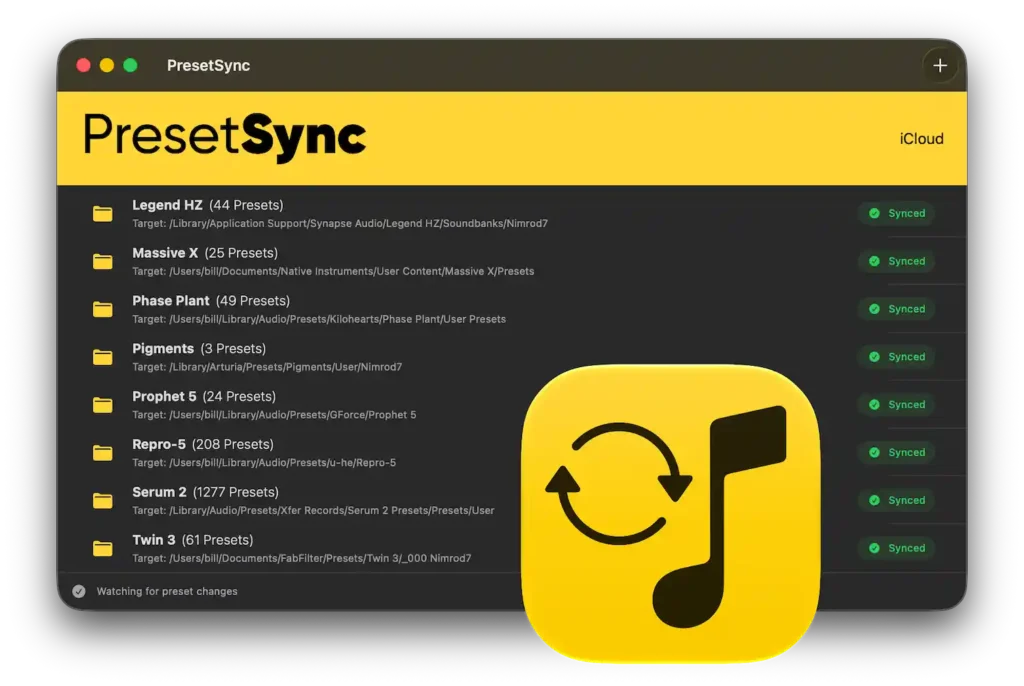
You can buy PresetSync from presetsync.app
Download a free Trial (no account required)
You spend an evening working on a synth patch on your laptop. You get the sound exactly where you want it, save the preset, and call it a night.
The next morning, you're at your studio computer. You open the same synthesizer, look for the patch, and realize it's still sitting on your laptop.
Now you're digging through folders, transferring files, or trying to remember whether you saved the latest version to Dropbox.
If you produce music on more than one computer, keeping your synth presets in sync can become a surprisingly frustrating part of your workflow. It gets even trickier when switching between Mac and Windows, where the same synthesizer might store its presets in completely different locations.
PresetSync is a native macOS and Windows application built to solve this problem. It synchronizes your preset folders between computers, using your existing cloud storage or PresetSync Cloud, while helping protect against conflicting changes and accidental deletions.
PresetSync keeps your synth presets synchronized across multiple Macs, multiple Windows PCs, or a mix of both, so your sounds are always available wherever you make music.
Here's how to get your presets working across multiple machines.
Why Syncing Synth Presets Isn't as Simple as Copying a Folder
Unlike audio files or project sessions, synthesizer presets don't all live in one predictable place.
Some instruments store user presets in your Documents folder. Others have their own application-specific directories, sometimes buried several levels deep. And the location used on macOS often has little in common with its Windows equivalent.
If you use several synthesizers (or effects), finding and maintaining those folders becomes a job of its own.
You could copy everything manually, but that introduces another problem: your preset library is constantly changing.
You create new patches, tweak existing sounds, rename files, and reorganize folders. If you make changes on both computers, copying one folder over the other risks replacing presets you wanted to keep.
A shared Dropbox or iCloud folder doesn't automatically solve this either. Your synthesizers still expect their presets in specific local directories, and moving those directories isn't always possible or desirable.
PresetSync bridges that gap by keeping track of the preset folders on each computer, even when their locations differ.
How to Sync Synth Presets with PresetSync
Let's say you have a MacBook for working on ideas away from the studio and a Windows desktop for your main production setup.
You use the same synthesizer on both computers and want the presets you create on either machine to be available on the other.
Here's how you'd configure that workflow.
Step 1: Install PresetSync on Both Computers
Install PresetSync on your MacBook and Windows PC.
The application runs independently on each machine, monitoring the preset collections you've configured.
It doesn't run inside your DAW, so there's no additional plug-in to load into your projects.
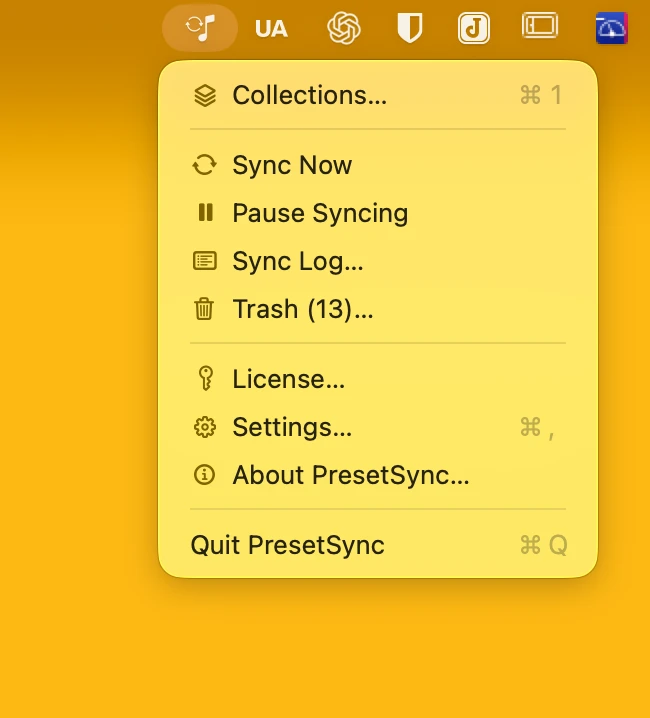
Step 2: Add Your Synth Preset Folder
On your Mac, open PresetSync and add the preset folder you want to synchronize as a collection.
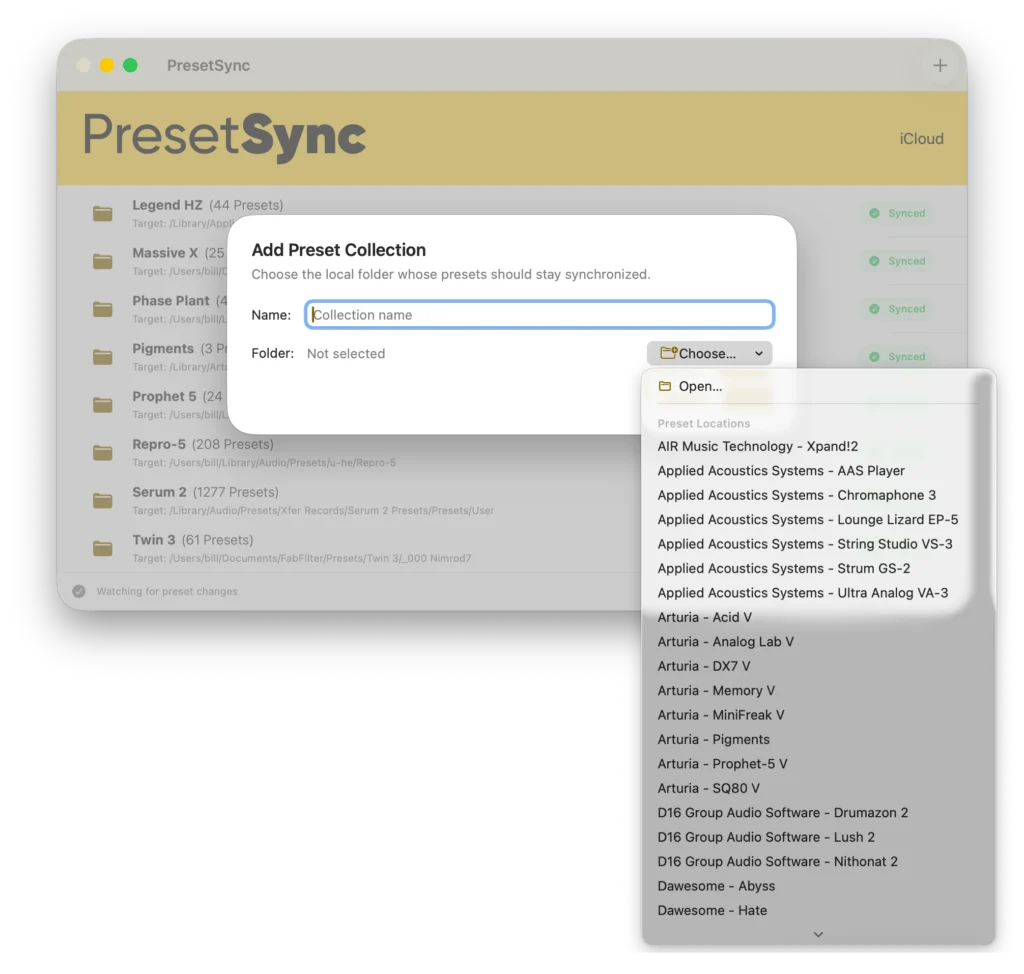
PresetSync includes a built-in catalogue of recognized preset locations. For supported locations, it helps identify where the application stores its presets.
If your synthesizer isn't in the catalogue, you can add its preset folder manually.
For example, imagine your synthesizer stores user patches somewhere inside your Mac's Documents directory. You select that folder as a collection, and PresetSync tracks its eligible files.
You can repeat this process for other synthesizers or sound libraries.
Step 3: Choose Your Synchronization Storage
Next, choose how your computers will exchange preset changes.
PresetSync supports two approaches:
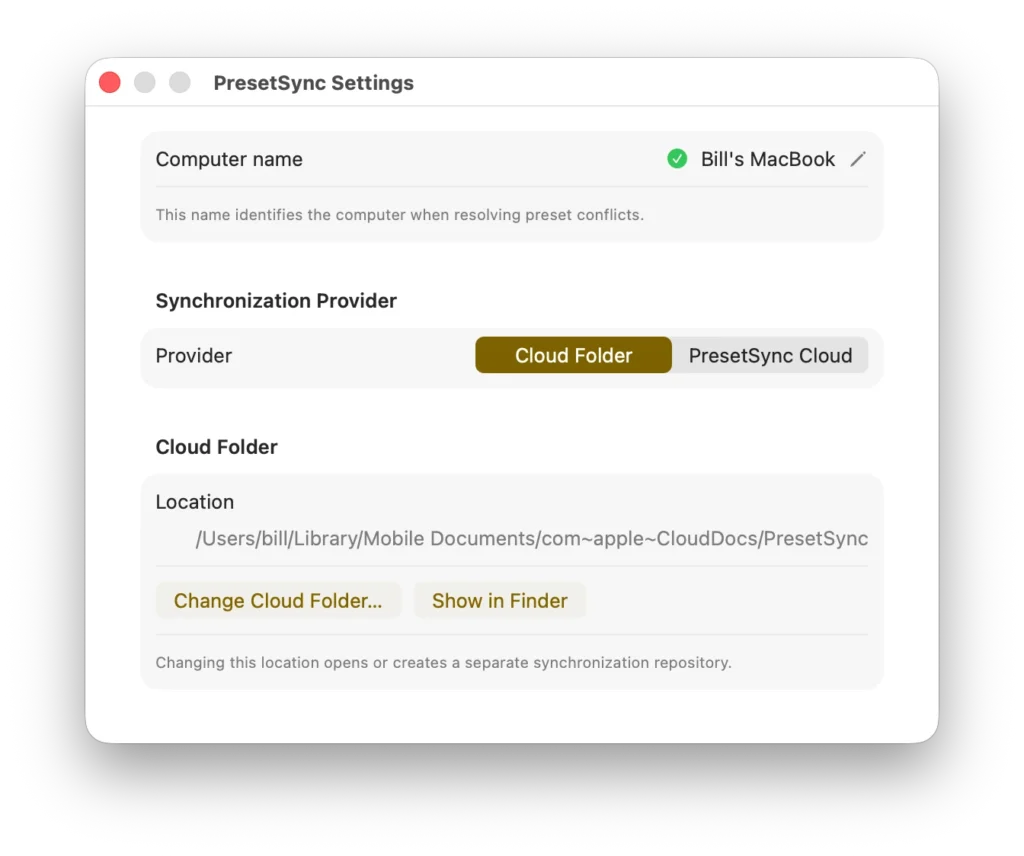
- Cloud Folder: Use storage you already have, such as iCloud Drive, Dropbox, OneDrive, or a suitable network share or NAS.
- PresetSync Cloud: Use PresetSync's hosted synchronization service, available through a separate subscription.
With Cloud Folder, you select a shared storage location that PresetSync uses as its synchronization repository.
Your cloud provider makes the repository available between machines, while PresetSync manages changes to your tracked preset collections.
You don't need a PresetSync Cloud subscription to use Cloud Folder.
Step 4: Configure the Preset Location on Windows (or another Mac)
Now move to your Windows computer.
Connect PresetSync to the same synchronization storage and configure the corresponding preset collection.
This is where PresetSync becomes particularly useful for cross-platform music production.
Your synthesizer might store presets in a Documents subfolder on macOS but use a completely different directory under Windows.
PresetSync allows each computer to use its appropriate local destination. For recognized locations, the built-in catalogue can identify the corresponding destination when it exists and validates. Otherwise, you select the folder yourself.
The paths don't need to be identical.
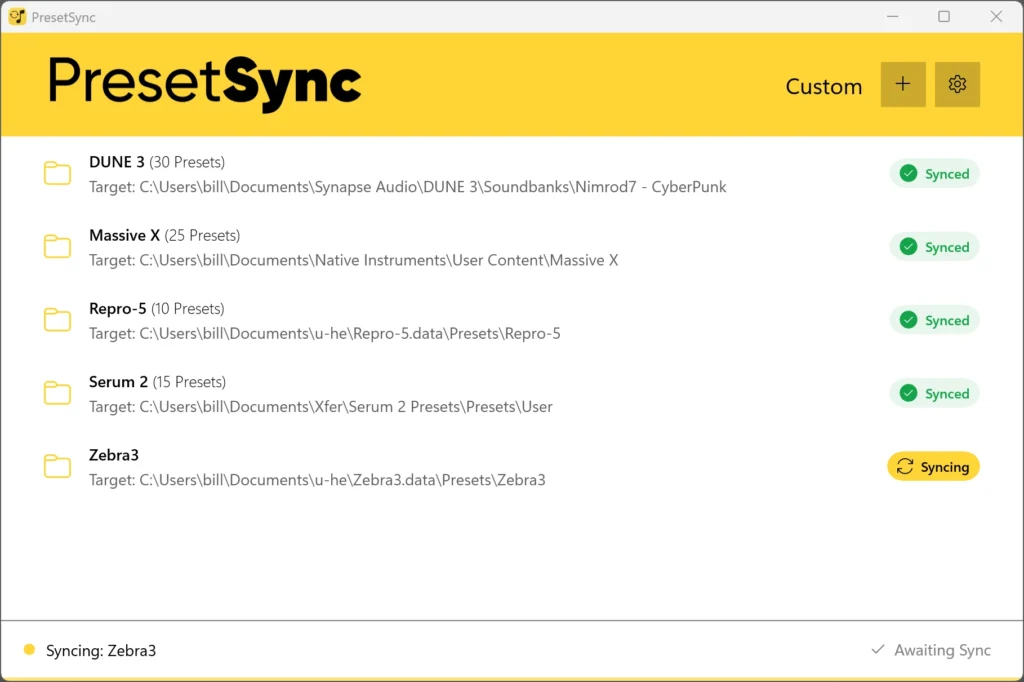
Step 5: Create a Preset and Let It Synchronize
Once both computers are configured, try saving a new patch.
Create a sound on your MacBook, save it to the tracked preset folder, and let PresetSync process the change.
When the shared storage is available to your Windows computer and PresetSync is running there, it can receive the new preset into the configured destination.
Open your synthesizer on Windows and check that the patch is available through its normal preset browser. Some instruments may need to refresh or rescan their preset library before new files appear.
You can work in the opposite direction too. Compatible file changes made on Windows can synchronize back to your Mac.
Synchronization isn't guaranteed to happen instantly. Timing depends on connectivity, file availability, and the storage provider you're using.
Both computers also need PresetSync running to participate. Closing its main window leaves synchronization active, while quitting the app stops it on that computer.
Can You Sync VST or AU Presets Between Mac and Windows?
You can synchronize compatible, file-based VST and synthesizer preset libraries between Mac and Windows. However, there's an important distinction between synchronizing a preset file and being able to open it.
PresetSync transfers the files in your configured collections. It doesn't convert proprietary preset formats, install plug-ins, or make incompatible synthesizer versions work together.
For example, if you create a preset using a particular synthesizer on macOS, the Windows version still needs to support that preset format.
Some instruments also store sounds in internal databases rather than accessible individual files. Others depend on external samples or additional resources that must be available separately.
PresetSync handles file synchronization, not synthesizer compatibility.
For compatible file-based libraries, however, it removes the need to manually copy every preset change between computers.
Your Cloud Storage or PresetSync Cloud?
You don't need to change cloud providers just to synchronize your presets.
If you're already using Dropbox, iCloud Drive, or OneDrive, PresetSync's Cloud Folder mode lets you use that existing storage.
It also supports suitable shared network storage, including NAS folders.
There are a few practical requirements.
The synchronization repository must remain fully available locally. Online-only placeholder files aren't suitable because PresetSync needs access to the actual repository contents.
Cloud Folder can process changes using locally available storage while offline, but those changes won't reach another computer until the shared storage becomes available there.
Google Drive is not currently a supported Cloud Folder provider.
If you'd rather use a dedicated hosted service, PresetSync Cloud is available as a separate subscription.
The application licence and Cloud subscription are independent. You can use Cloud Folder without paying for PresetSync Cloud, and cancelling a Cloud subscription doesn't revoke your perpetual app licence.
What Happens If You Edit the Same Preset on Both Computers?
Imagine you've been refining a bass patch on your MacBook. You adjust the envelope, add some modulation, and save your changes.
Meanwhile, your studio PC still has the previous version. Before the two computers synchronize, you make a different adjustment to that same preset on Windows.
Now both computers have changes worth keeping.
A simple file-copying approach might replace one version with the other, depending on how the files are transferred.
PresetSync is designed to avoid silently discarding conflicting work.
During initial reconciliation, different local and cloud versions can be preserved automatically as separate files.
When competing edits or incompatible operations need your attention, PresetSync keeps those conflicts visible so you can decide how to resolve them.
It doesn't merge the internal parameters of two synthesizer patches. The goal is to preserve the relevant files rather than silently choose one and discard the other.
This matters even more when you're working on sounds that took hours to create.
What About Deleted Presets?
Deleting a preset on one computer can affect the synchronized collection on your other machines.
PresetSync includes safeguards for this.
Accepted deletions create Trash entries, making it possible to restore deleted content. Restoration preserves the preset's identity without overwriting an existing file.
It also distinguishes between a genuinely deleted collection and a folder that's temporarily unavailable.
If you disconnect an external drive containing your presets, for example, PresetSync doesn't treat the missing drive as an instruction to delete the entire collection everywhere.
These protections don't replace proper backups, but they make synchronization safer when things don't go according to plan.
Frequently Asked Questions
Can I sync synth presets between two Macs?
Yes. PresetSync supports synchronization between macOS computers, as well as between Mac and Windows. Each computer uses its configured local preset locations.
Can I use Dropbox to sync VST presets?
Yes. Dropbox is supported through Cloud Folder mode. PresetSync manages eligible changes to your configured collections, while Dropbox makes the synchronization repository available between machines.
The repository must be stored locally rather than left as online-only placeholders.
Do both computers need to be online at the same time?
No. Changes can reach another computer later, when the shared storage becomes available and PresetSync is running there.
The exact timing depends on your synchronization provider and connectivity.
Does PresetSync work with every synthesizer?
PresetSync can synchronize accessible file-based preset folders that you configure.
Its built-in catalogue helps locate recognized preset directories, and manual collections accommodate other suitable folders.
Whether the receiving synthesizer can load those files depends on the preset format, software version, and any required external resources.
Is PresetSync a backup application?
No. PresetSync is designed for file synchronization.
Its conflict handling and Trash features provide useful safeguards, but synchronization isn't a substitute for maintaining independent backups of important sound libraries.
Your Presets, Wherever You Make Music
Moving between a laptop and a studio computer shouldn't require exporting patches, comparing folders, and wondering which machine has the latest version.
PresetSync keeps compatible preset files synchronized across your configured computers, whether you use macOS, Windows, or both.
You can use your existing cloud storage, choose PresetSync Cloud, and let your synthesizers continue working with their normal local preset folders.
You already spent the time creating the sound. You shouldn't have to spend more time moving it around.